A real sentence. In your own application.
Keep this guide beside Meymo. Each step happens on your Windows PC.
Try your first dictationWindows x64 · Version 1.0.24 · Installer 1.77 MiB · Application and models 3,871.35 MiB · Installed 5,247.73 MiB
EXE SHA-512
XgYGXS/02qNx9geqvPE/fzr6JjB3wqmYuC6dNgwE6QAo69b1DMlsk1znmOtD6Zlm/vOPOGHbApl3Y2lAfoC6XQ==The installer downloads everything you need. Once installed, Meymo’s AI works on your PC.
Internet and Windows prompts
Run the signed EXE. Internet is needed to download the application and its models, then to sign in and verify your licence. AI processing stays on your PC. Windows SmartScreen may still show a warning. Check the publisher NEIRDA DEV before continuing.
Already using Meymo from the Store?
Already using Microsoft Store? Close Meymo normally. In the EXE version’s Settings, choose your Store vault or keep the existing EXE vault. Histories are not merged; protected backups are kept. Check your data and account before voluntarily uninstalling the Store version.
Meymo Desktop 1.0.20 guide
The public reference for Meymo Desktop 1.0.20, its three surfaces and its local-first workflows.
Reading time: about 8 minutesThe taskbar menu
Quick access from the notification area.
The Meymo bar
Floating surface: dictation, rewrite, state.
The Settings menu
All settings organized by tab.
On this page
The taskbar menu
The Meymo bar
The Settings menu
The connectors
 Connect Notion
 Connect HubSpot
Getting started
Understand the web account and the three desktop surfaces.
Meymo is a local Windows application with exactly three user-facing surfaces.
- Capture bar: Dictation, Rewrite, Translation, audio/video files, custom actions, History and Settings.
- Settings: language, insertion, local models, workflows, dictionaries, account and privacy.
- Tray menu: open or hide the capture bar, resume a draft, open Settings or quit.
- meymo.app manages sign-in, the 14-day account trial, subscription, devices, guide and support.
meymo.app is the public and commercial companion; product content remains local.
- Sign in with an account and pair the desktop application.
- The trial starts at the first authenticated app connection, not at installation.
- Manage the Pro subscription (€14.90 per month or €149 per year) and up to two activated computers.
- Open this guide, the published changelog and support without transmitting dictated content.
The taskbar menu
Open, hide, configure or quit Meymo from the notification area.
The native Windows tray menu keeps Meymo available when the capture bar is hidden.
- Open Meymo displays the capture bar without starting the microphone.
- Close Meymo hides the bar and preserves the current draft; it does not quit the app.
- Resume the protected draft or open Settings when needed.
- Quit is the only action that exits Meymo.
The Meymo bar
Dictation, history, rewrite, translation and file transcription from one compact bar.
The compact capture bar expands only for the active task and never starts recording on open.

- The five primary actions stay in a stable order.
- Pause, Resume, Finish and Cancel appear only while a capture is active.
- Results remain editable when insertion fails or cannot be confirmed.
Dictation detects speech and transcribes it on your computer using Meymo’s local engines.
- Select automatic language detection or a source language, then start Dictation.
- Silence never inserts text, creates history or erases an existing draft.
- Automatic insertion uses the last external editable field; otherwise review and choose Insert.
- New microphone dictations are stored as individually encrypted history entries.
- For French, enable spoken punctuation and number and unit formatting in Settings. These options apply to dictation, translation input and files, never voice searches.
A reply to clarify, a sentence to smooth out. Select your text or paste it into Meymo, then review the rewritten version.
- The result is editable and keeps the original collapsed for comparison.
- Insert targets the last chosen external destination; selected text is replaced, otherwise insertion occurs at the caret.
- Use Save rewrite to keep the edited result with its original in local history. Saving never sends it to a connector.
- Correct, rewrite or shorten text. Create your own modes in Settings; the Rewrite button runs your last selected mode.
Before sending a text to an outside service, replace names, addresses and identifiers with stable markers such as [Person 1], then put the real identities back into the reply. Everything happens on your computer.
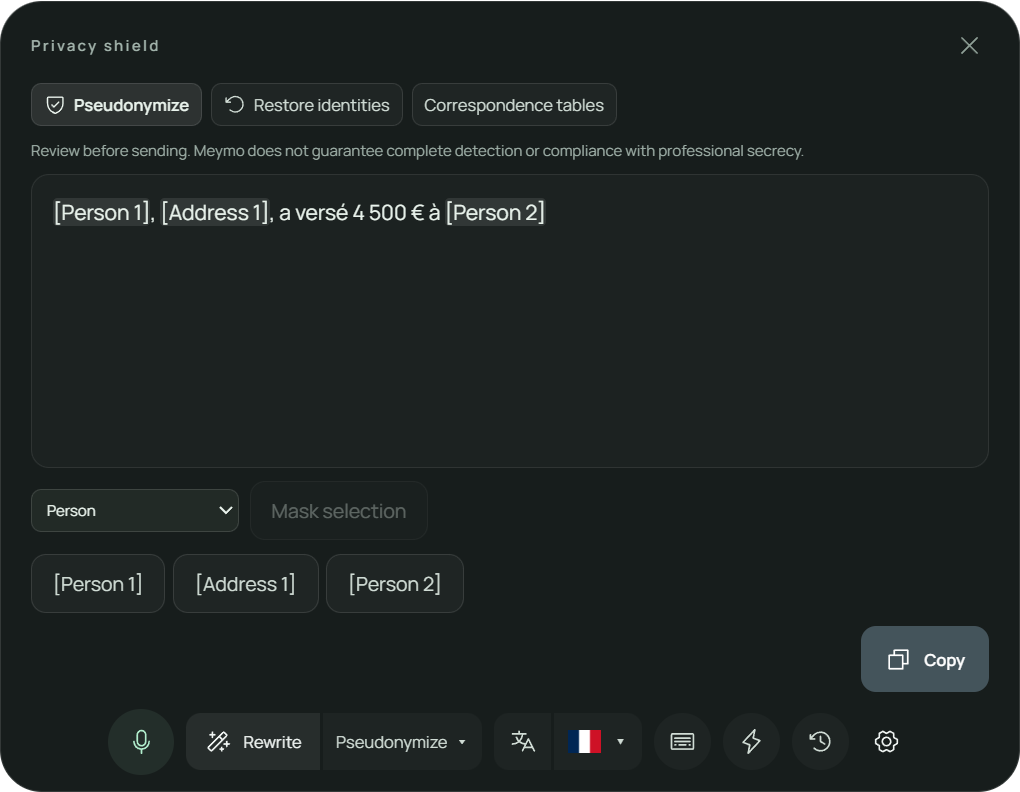
- Open it: in the Rewrite selector, choose Pseudonymize, then select or paste your text and click Rewrite.
- Detection: the local model proposes names and addresses; exact rules add e-mails, phone numbers, IBANs, French social security numbers and French case numbers. If the model is unavailable, Meymo says so and applies the rules only.
- Review: unmask a marker with one click or select a missed passage to mask it. Copy is the main action; nothing is inserted or sent automatically.
- Restore identities: paste the reply you received or read it from a selection, choose its correspondence table and Meymo puts the real values back. Unknown markers are flagged.
- Correspondence tables: the 20 most recent are kept encrypted on this computer, separate from history. Delete one or all of them after confirmation.
- Review before sending: Meymo does not guarantee complete detection or compliance with professional secrecy.
Translate a message, a selection or your voice, directly on your computer. Choose from 16 output languages and review the result.
- Choose any of 16 output languages; choosing a language alone never executes or inserts.
- Voice translation saves the original transcript in history and links the translated result to it.
- Insert can be retried without translating again; failed or unconfirmed insertion preserves both texts.
- Password fields are excluded and read-only selections always stay in review.
History is the single place to browse saved dictations and search by meaning. Opening it does not activate the microphone.
- Type a query and press Enter, or use the separate microphone beside the same search field.
- Browse 50 previews per page and load full text only when reusing it.
- Results combine semantic relevance with exact topic and name matches.
- Reuse is explicit and permanent deletion requires inline confirmation.
Open a local audio or video file and get a transcript you can edit, search and insert where you need it.
- Up to 500 MiB and 2 hours per file, with progress, pause, resume and cancellation. Review the text before inserting it.
- Choose automatic detection or a source language, then select Transcribe.
- The result is saved encrypted with file provenance and can be updated after editing.
- Insert uses the last chosen editable destination; files are never auto-inserted.
Prepare an e-mail, summary, session note or assessment report from the facts supplied. Use a template or your own instructions.
- Incomplete actions remain editable drafts and cannot run.
- Review the result, insert it into your chosen destination or keep it locally. Saving locally never sends it.
- Clinical templates require practitioner review: check facts, scores and conclusions. Missing information remains for you to complete.
- When connectors are available, a separate action sends the finalized result to the explicitly chosen Notion database or HubSpot contact or company.
One global shortcut opens the capture bar from any Windows application.
| Shortcut | Action |
|---|---|
| Ctrl + Shift + Space | Open Meymo without activating the microphone. |
In Settings › Shortcuts, assign a key or combination to Start / stop dictation: press once to begin, again to finish and transcribe. It is unassigned by default.
The Settings menu
Settings save immediately and stay synchronized without restarting Meymo.
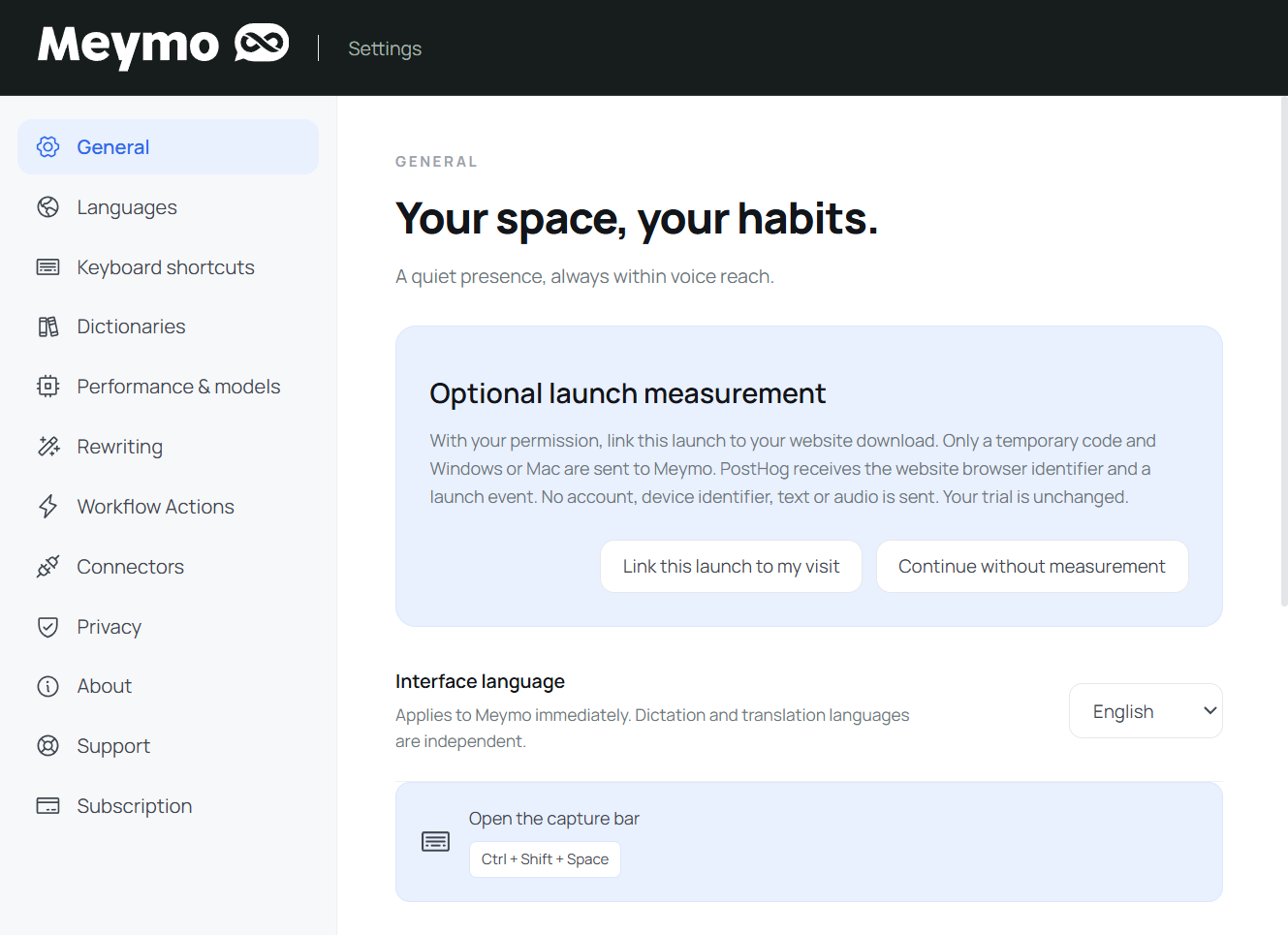
- Interface language: English, French, Spanish, German, Portuguese (Portugal) or Italian.
- Automatic insertion is a single Settings-only preference shared by dictation and translation.
- Settings save immediately; there is no Save button.
- The interface language stays independent from dictation and translation languages.
- Account state: active, offline grace period, or sign-in required.
- Information: plan (Free, Pro, Business), last sync, computer ID, and last error.
- Actions: sign in, sync, show details, and sign out.
- Pairing in progress: pairing code and expiry when pairing through the browser.
- Connected computers: list of linked computers, last sync, and status (active or revoked).
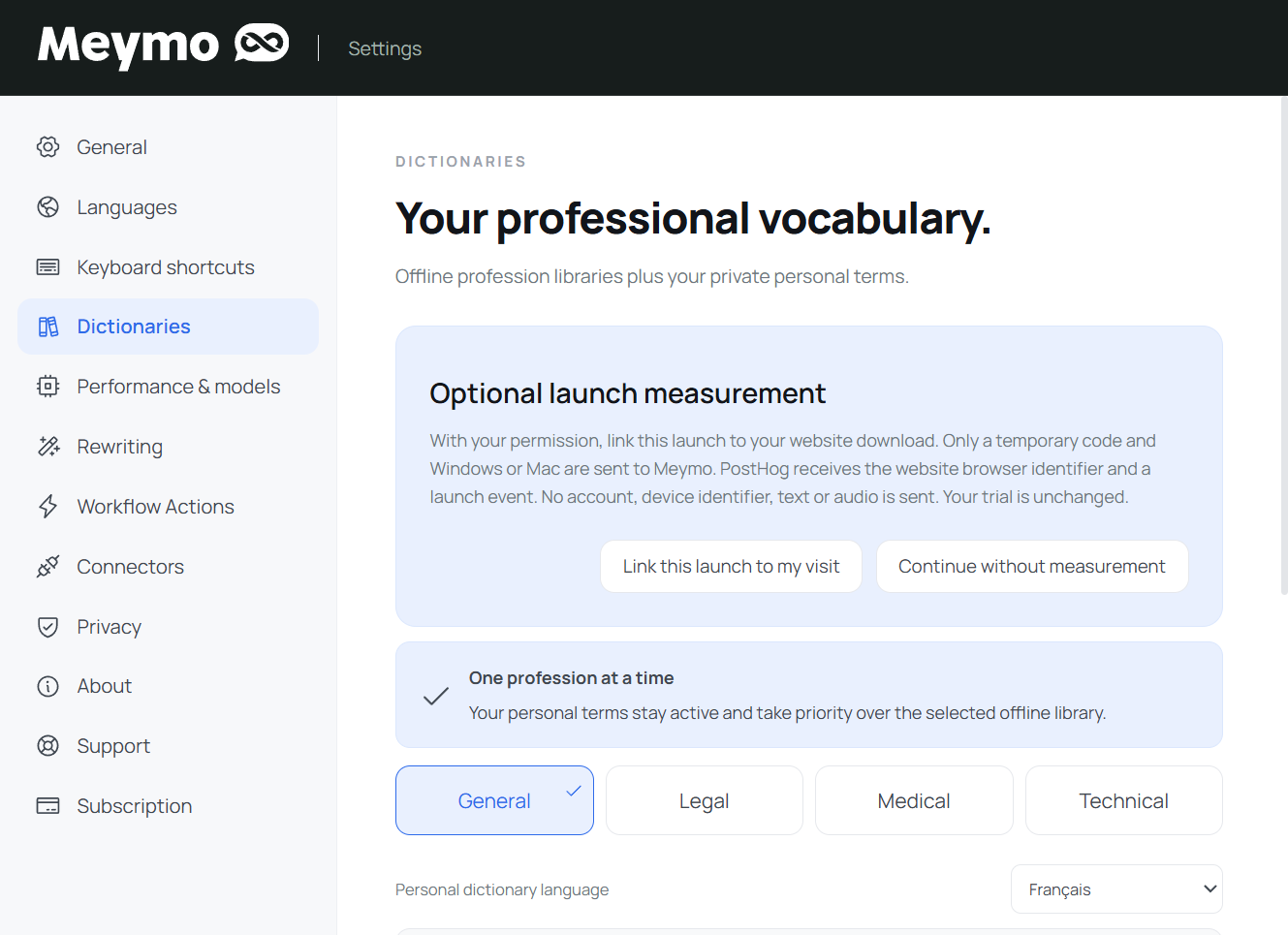
- Activate one profile: General, Legal, Medical or Technical.
- Each profession library ships prefilled in all six interface languages.
- Search, edit, enable, disable or bulk-delete your private preferred terms and heard → expected replacements.
- Import with a preview, export an encrypted Meymo backup by default, or deliberately choose readable CSV.
- Import reference dictionaries too: up to 10,000 terms per collection. Your 500 personal terms take priority over references and the professional library.
- Min, Super and Max are real local performance profiles.
- The Min profile uses two CPU threads. Meymo adapts its engine to the language and keeps fallback engines; processing stays local.
- The application reports model, microphone and file errors without exposing internal system messages.
- About shows the installed technical version and links to guide, changelog and support.
- Privacy: from version 1.0.21, Meymo opens normally after the usual account connection, without an extra measurement step. A fresh optional V4 choice on the website covers the journey, successful use by feature family and subscription, including after payment. No text, audio, name, email or hardware identifier reaches PostHog EU. Withdraw on the site or in Privacy settings. Refusing leaves the application and trial unchanged. The separate optional launch confirmation belongs to legacy version 1.0.20.
- Your request: name, e-mail, subject, description and, if you wish, the approximate time of the problem. It is sent to Meymo support (Zoho Desk) only when you choose to send it, even without an active subscription.
- Technical diagnostic: optional for each request. Preview its exact content before sending, or export it as a file. Only version, system and technical events are shared; dictations, audio, history and secrets are excluded.
- Reference: once received, your request gets a reference and Check delivery status shows whether the diagnostic is attached to the same ticket.
- Interrupted send: the request stays saved on this computer. Retry this request sends the same request again without creating a duplicate ticket.
- If Meymo cannot open: use the support page on meymo.app. Support is also available from About.
The connectors
From a custom action, explicitly send your finished text to a chosen Notion database or HubSpot contact or company. Saving locally never sends it.
Connect Notion, choose a database, then send a finished result deliberately from a custom action.
- 1In Settings › Connectors, connect your Notion account and authorize access to the databases you want to use.
- 2Choose a database from the automatically loaded list. The choice is kept encrypted on your computer.
- 3Open a custom action from a completed dictation or from History.
- 4Review the result. You can choose a different database directly in this panel.
- 5Only the separate action naming the destination sends the finished text. Selecting a database or saving locally sends nothing.
- 6A custom action may have its own default database. There is no global automatic sending mode.
- 7After a confirmed send, check the named destination and use Open in Notion when available.
Connect HubSpot, choose a contact or company, then send a finished result deliberately from a custom action.
- 1In Settings › Connectors, connect your HubSpot account.
- 2Search for a contact or company and select it explicitly. Meymo never guesses the recipient from your text.
- 3Open a custom action from a completed dictation or from History.
- 4Review the result and choose or change the destination directly in the action panel.
- 5Only the separate action naming the destination sends the finished text. Selecting a contact or saving locally sends nothing.
- 6The active destination is cleared when Meymo closes. Up to five encrypted recent destinations help you choose again; none is selected automatically.
- 7After a confirmed send, check the destination and local delivery time. Open in HubSpot is available when the provider returns a link.
Ready to dictate?
Open Meymo on your desktop and start your first dictation, or connect your computer from the web companion.
Connect my computer